Create a collection
Start on Collections, choose Add collection, and give the things you want to catalog a clear home.
- Name the collection
- Add categories when useful
- Keep it in one catalog
Create a collection, add the things you own, and keep the details you want with each item. Here is the full flow.
Start the walkthroughStart on Collections, choose Add collection, and give the things you want to catalog a clear home.
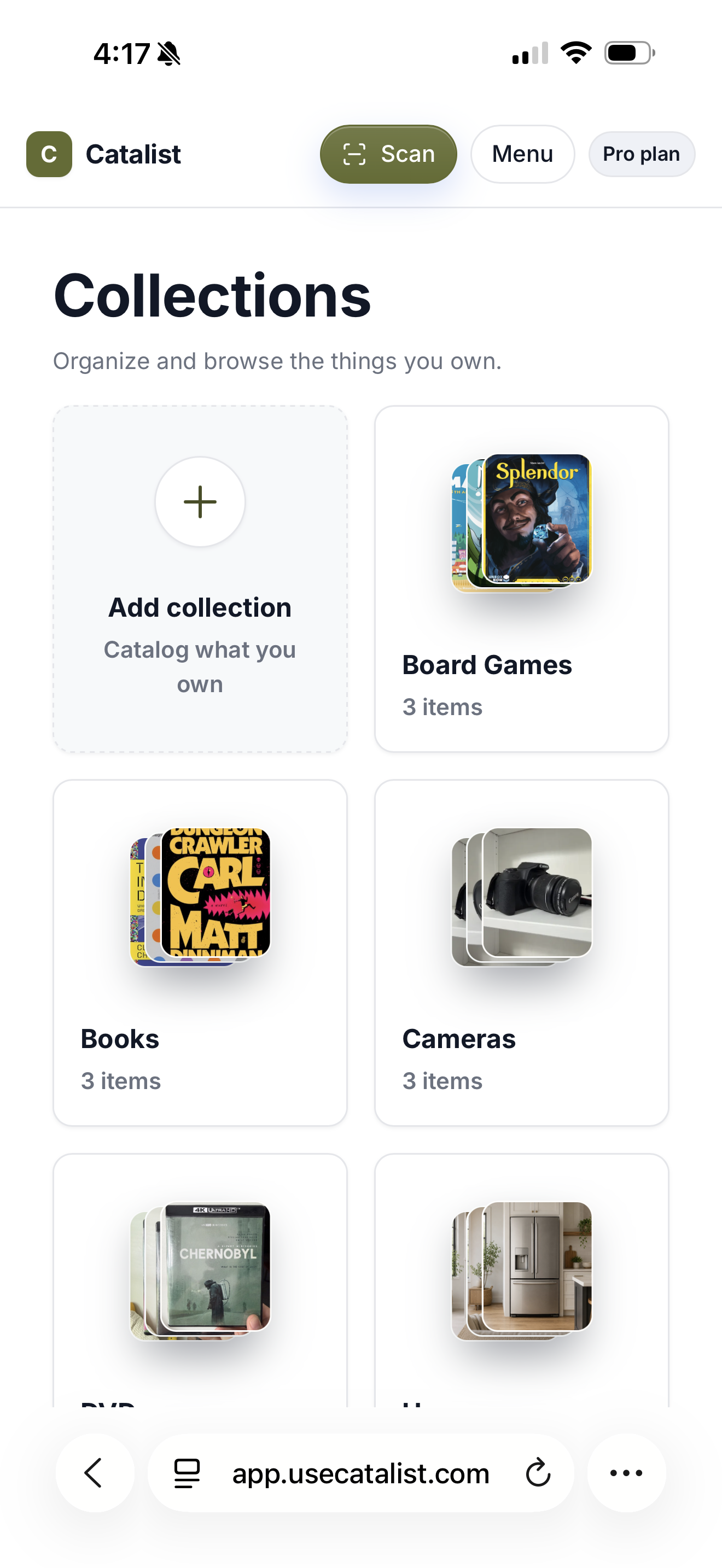
Create a collection and give the things you want to catalog a clear home.
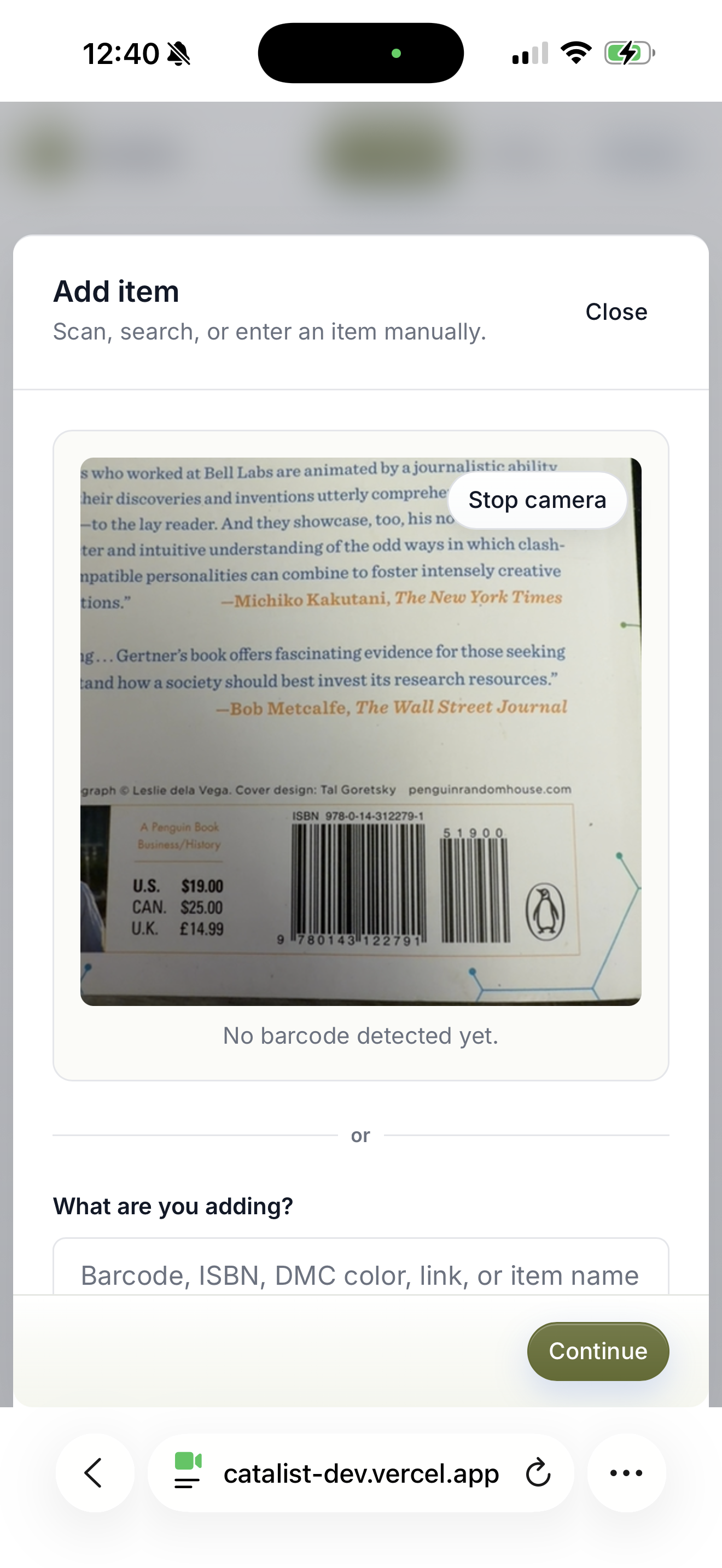
Scan book and physical music barcodes, or add the item yourself. More types are coming.
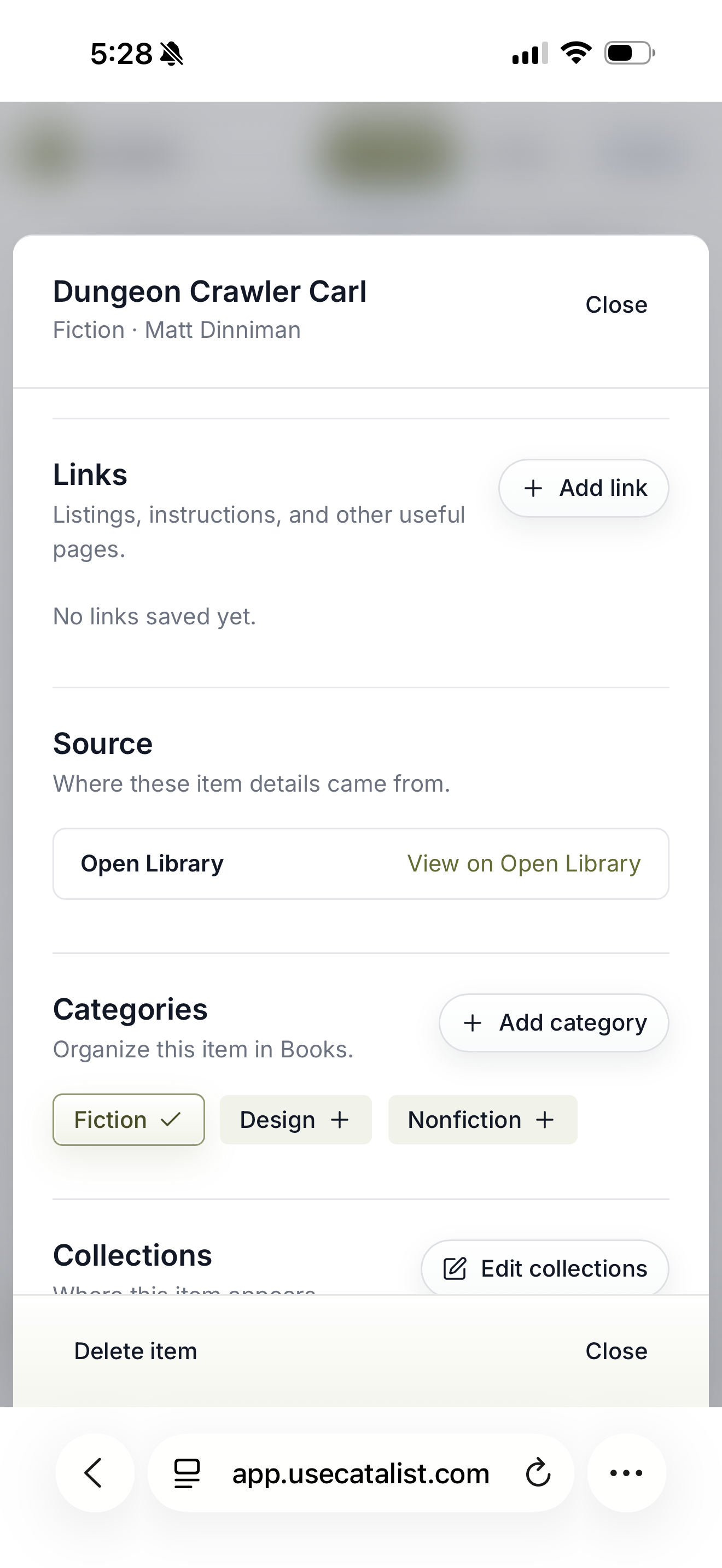
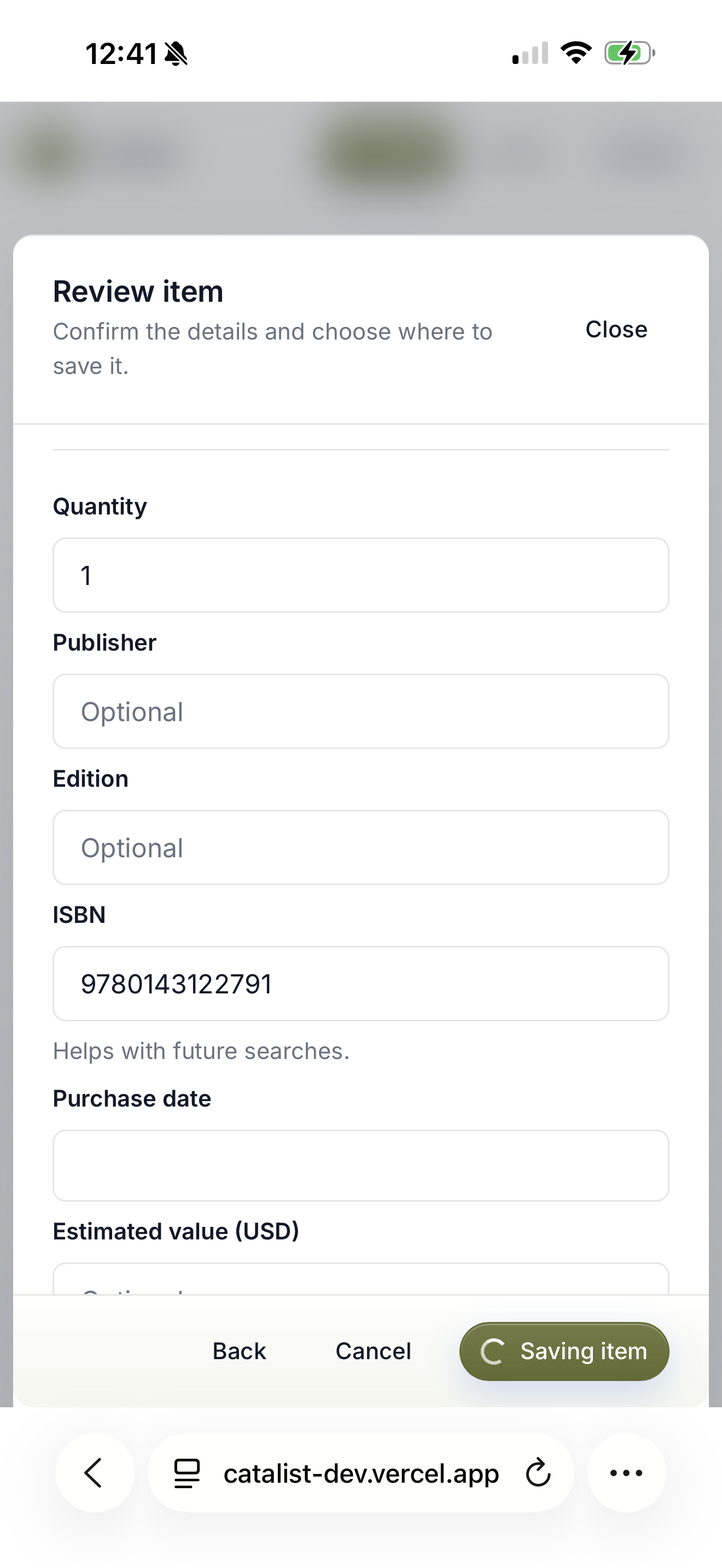
Check the match or the details you entered, and make sure everything looks right.
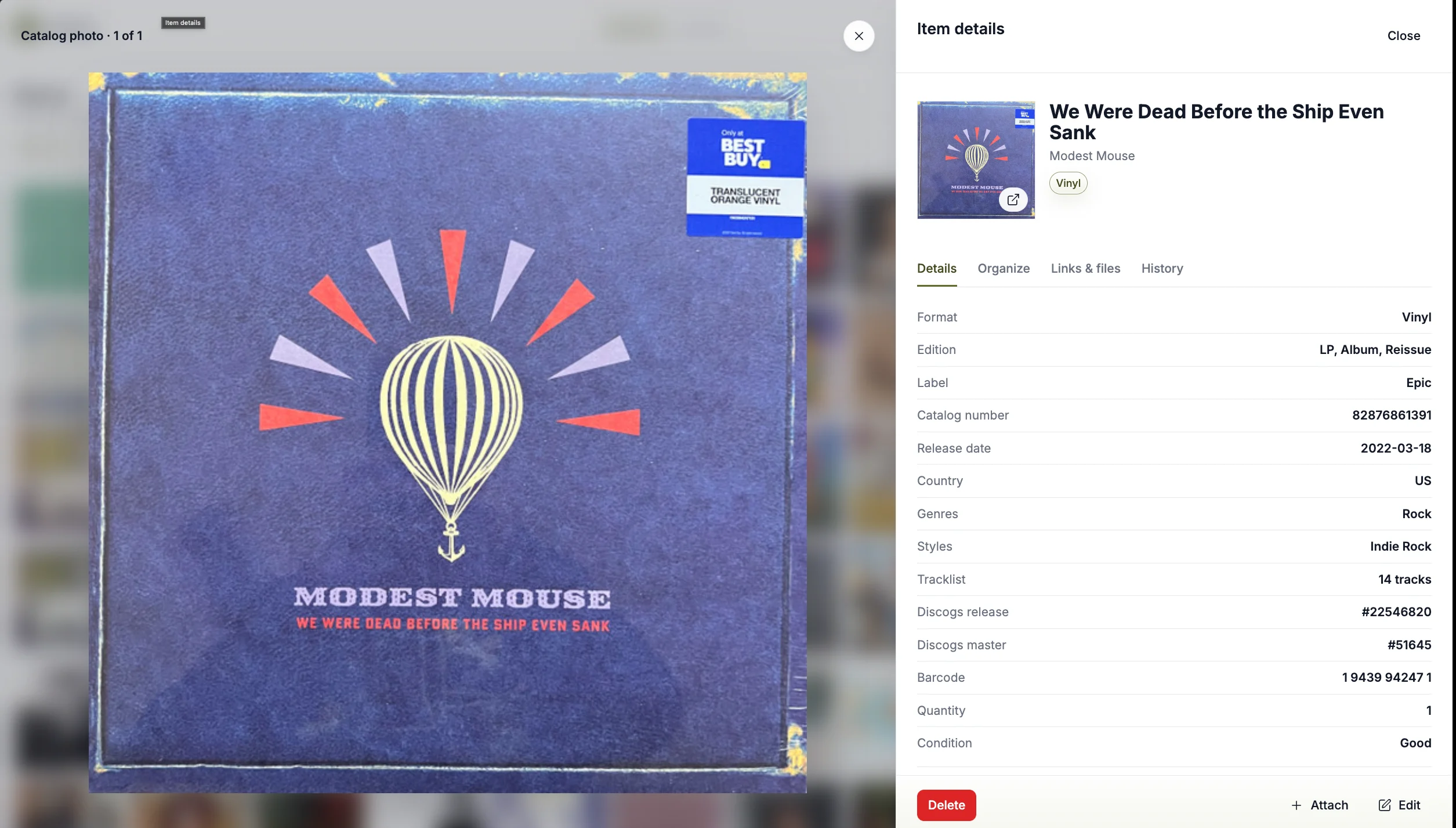
Keep photos, condition, value, notes, links, and identifying details.
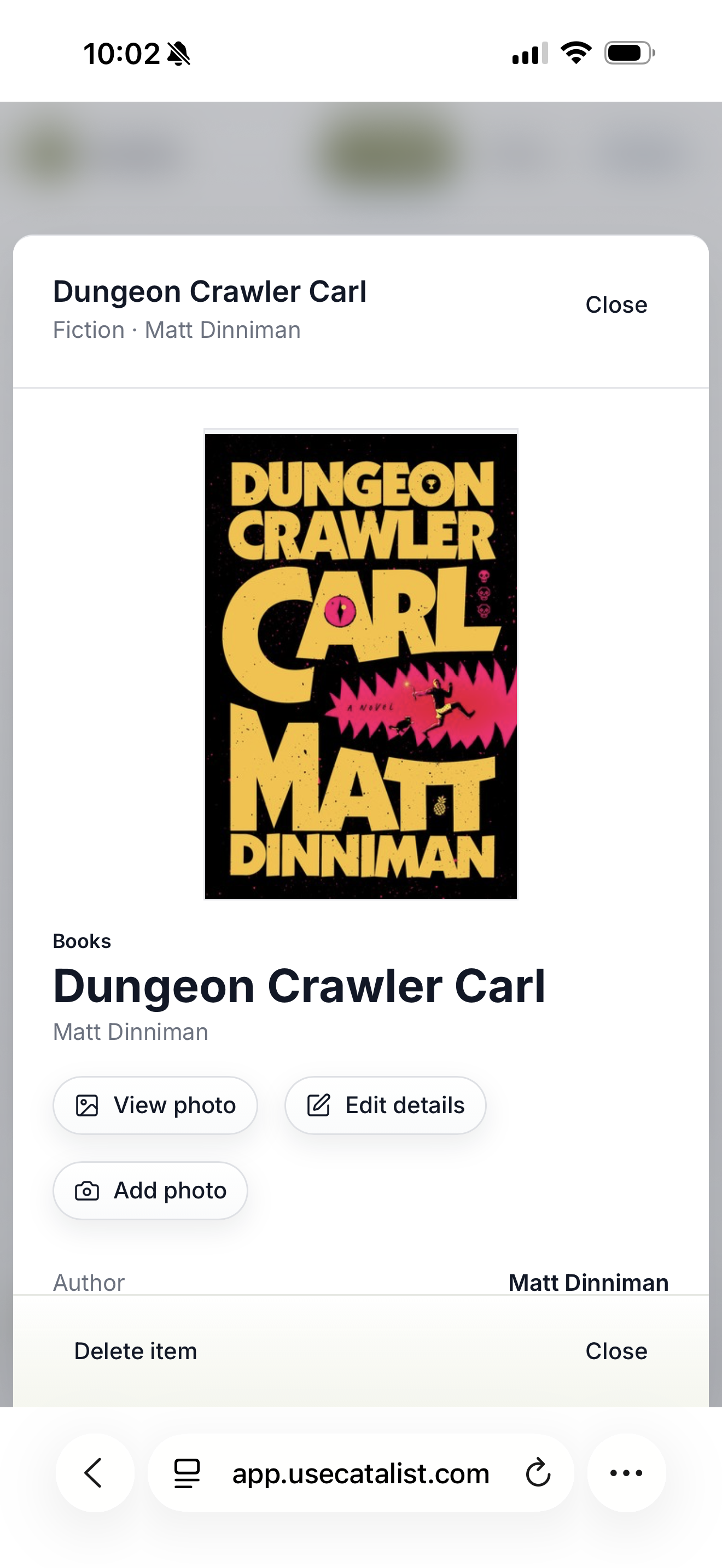
Save the item now, then return whenever you want to add more details later.
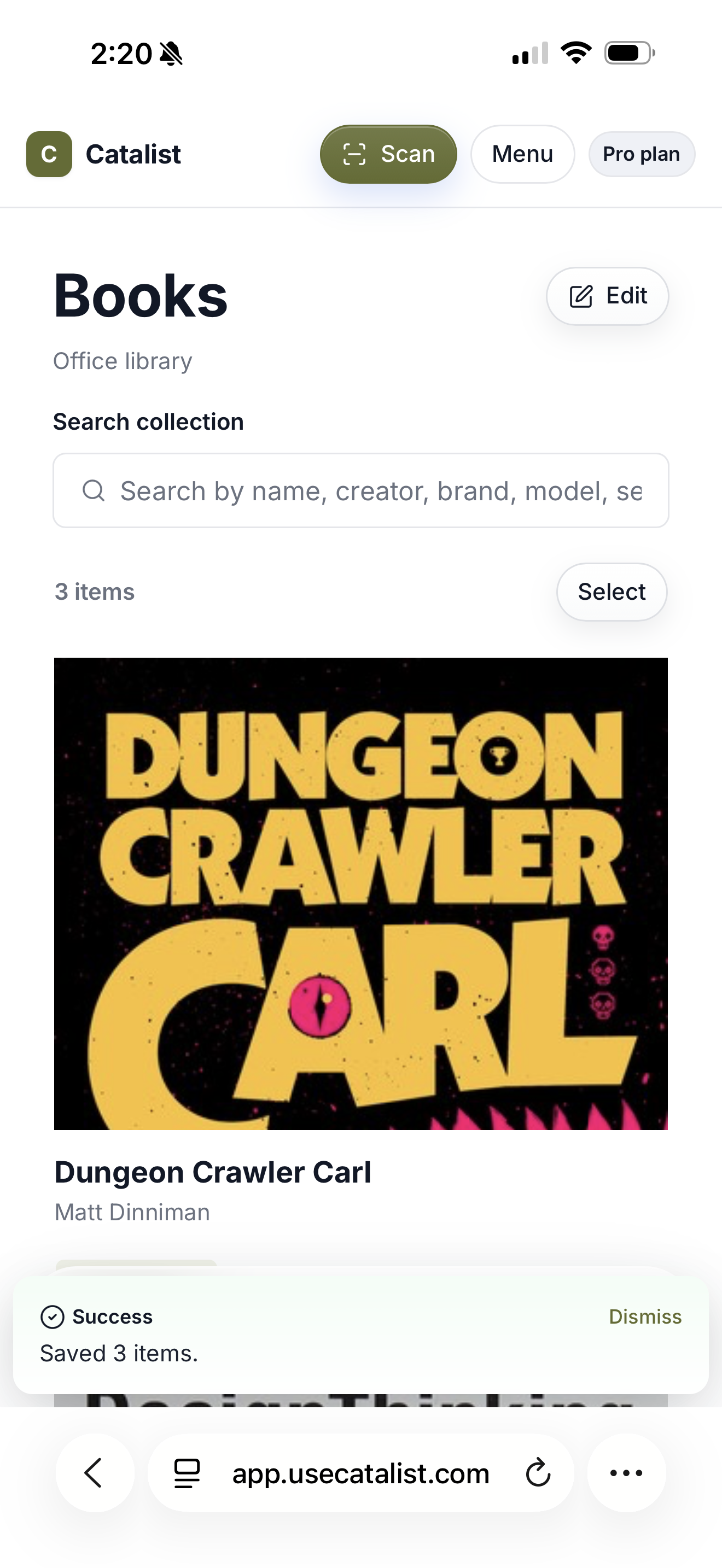
Browse its collection or use Inventory for a broader view of everything you own.
Step 1 of 6
Go deeper
Catalist gives each collection and item room for the details, references, and context that make your catalog useful later.
Give different kinds of belongings their own collections, then use categories that make sense for the things inside them.
Scan supported books and music, use a supported link when it fits, or add the item manually. Review what Catalist found before saving it.
Take or upload item photos, then attach private PDFs or JPEG, PNG, and WebP images for receipts, manuals, invoices, and other useful documentation. Catalist stores these files with the item; it does not extract or interpret their contents.
Keep condition, acquisition information, recorded value, model and serial numbers, and other identifying details when they are useful.
Add private notes and labeled references to the item so the context you want is there when you return.
Browse items from their collections or Inventory, with the search, filters, and views available for that workspace.
Create a collection, add your first item, and keep the details you want with it.
Private by default · One catalog · Everything you own